.png)



How to Trade with MetaTrader 4 Trading Platform?
MetaTrader 4 (MT4) is a digital trading platform well known for FX trading. Most brokers will provide it in 2022, and it will be available for download on Mac, Windows, and mobile apps. We'll go through expert advisors (EAs), demo accounts, tutorials, and assistance in this section, as well as how to trade on the MetaTrader 4 system.
What is MetaTrader 4 Platform?
MT4 is a simple and easy-to-use online trading platform. Traders use it to speculate on the price of key financial markets. Forex, commodities, stocks, indices, and even cryptocurrency are examples of them. It gained popularity as a result of the ability of users to design their own automated trading methods. Since then, it has evolved into one of the greatest systems on the market for automating your trades. If efficiency is important to you, then MT4 is for you.
It was created in 2005 by MetaQuotes and has been licenced to us so that you can trade with it. The programme gives you current pricing and charts, as well as the ability to make orders and manage your accounts.
How to trade with MetaTrader 4?
The platform offers a large library of indicators; realistically, you won't utilise them all, and you're unlikely to use even 10% of them. They are, nevertheless, available if you require them. They are created and shared by the global MT4 community.
You may use MT4 to customise your charts, trade a variety of lot sizes, and trade a variety of instruments.
You may also use it to create and implement your own automated trading methods. Allow it to do the heavy lifting for you.
Step 1: Open an account
First and foremost, you must create an account. It can be a demo or a live account, but you'll need one to start using MT4. After you've registered an account, you'll receive your MT4 login information.
Step 2: Download MT4
After you've opened your trading account, you'll need to download MT4. It is compatible with the majority of devices, including desktop and laptop computers, smartphones, and tablets. Simply log in with your credentials after downloading MT4.
You can download MT4 here.
Step 3: Select Your Markets
You may trade a wide range of markets using your MT4 platform, including FX, indexes, commodities, and individual stocks and CFD trading are other options.
To access the list of instruments, go to 'View,' then 'Symbols,' or use the shortcut 'Ctrl-U.' This section contains a list of symbols that you may add to your market monitor window. Then, just drag the symbol to the chart, and you'll be looking at the desired price chart.
Step 4: Create Your Charts
MT4 has a number of features for customising and personalising your trading charts.
You have the option to adjust the time frame here.

Objects can be drawn on the chart. Here's a list of places where you may find them.

You may format your charts to make them easier to read; this can be done through colour or chart type.

You can view numerous charts at the same time.
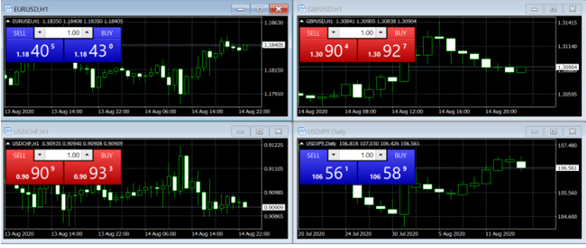
Step 5: Include indications.
Indicators may be added to your MT4 charts. MACD, moving averages, pivot points, the stochastic oscillator, and Bollinger bands are other common indicators.
Simply drag the trading indicator from the navigator window and drop it on the chart to add it to your charts. You will see a pop-up box where you may customise the indicators.

You may also use the menu bar to add indicators. Click Insert, then pick indicators from the drop-down option.

Step 6: Configure Alerts
It is simple to set up a price alert. By hitting CTRL+T on your keyboard and selecting the 'Alerts' tab, you may open the Terminal window at the bottom of the screen.
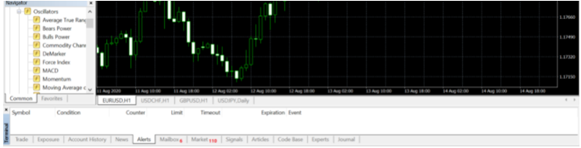
Right-click inside this window, select ‘Create’ from the menu, the alert editor window is where you set your price alert.
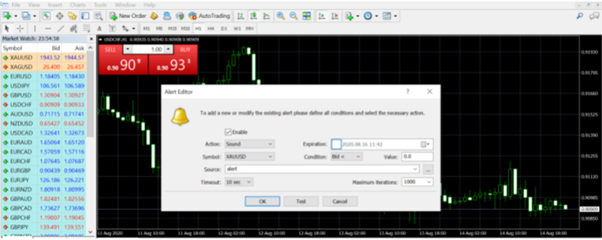
Within the price alert window, you can create a price movement alert for a market or select a particular time alert if the price hits a given threshold. You can choose an 'Expiry' date, which is the day on which the alert will expire.
Fill out all of the relevant information regarding the alert you wish to establish, then click 'OK,' and the alert is ready to go. The notifications you create are listed in the platform's alerts tab.
Step 7: Make a trade.
To execute a trade, go to tools and click new order; the order window will open; alternatively, hit F9 on your keyboard.
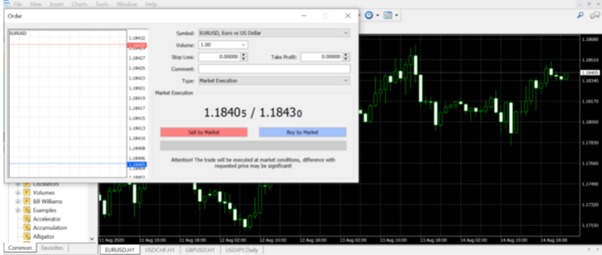
Here's a brief breakdown of all the tools available in the order window to assist you in placing and managing transactions.
Symbol. You may choose which market to trade using a drop-down menu.
Stop the loss. If you feel the market has moved against you, enter the level at which you wish the trade to finish.
Profit is yours. Enter your stop-loss level here if you wish to lock in earnings.
Volume is the quantity of lots you wish to exchange.
Type. When you click buy or sell instantly, you may choose 'Market Execution' to place your deal. You may also choose 'Pending Order' if you wish to specify the level at which your order will be opened.
Your next options will be determined on whether you select 'Market Execution' or 'Pending Order.'
Execution occurs immediately
This allows your deal to be filled at the best possible price. You'll be given two basic alternatives. Buy or sell. As the name implies, if you feel the market will increase, you purchase; if you believe it will fall, you sell.
Type: Select the type of trade to execute; limit the buy or sell price, set your take-profit limit or your stop-loss.
At price: Select the price level on which you wish your order to be filled. If the market doesn’t go to that price, your trade won‘t initiate.
Expiry: You pick this option to provide a date and time for your order to expire if the market does not meet your order requirements. For example, if you just intend to execute the deal that day, your order will be closed if it is not done that day.
Place: The big button for placing your market order.
Step 8: Manage your transactions (stop loss and limits)
To keep track of your transactions and pending orders, open the terminal window by clicking 'View' in the toolbar and then selecting 'terminal.'
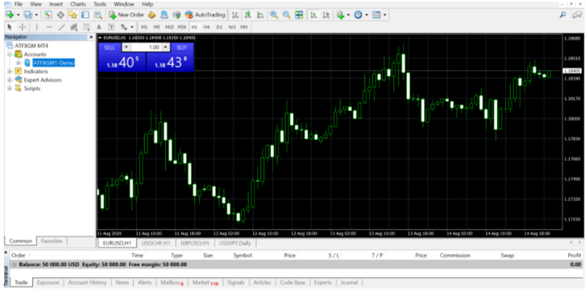
Your positions and orders can be seen under the trading tab. By clicking the X on the right-hand side of the profit column, you may close positions or eliminate pending orders.
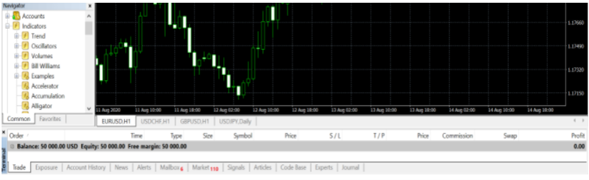
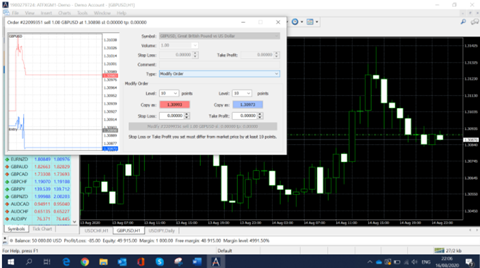
To alter stops, limits, and pending orders, open the terminal window and navigate to the trade tab. Then, right-click on the position or pending order that you wish to alter. Selecting 'Modify or Delete Order' will bring up the order window.
You will then be given the ability to change or add stops and limits to your position. When you're finished, simply click the red edit button to confirm your changes.
Step 9: Your trading performance
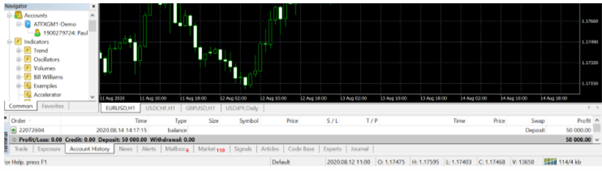
The 'Account History' tab on the terminal window contains your trading history. Select your date range by right-clicking and selecting one of the following options: entire history, the last three months, the last month, or a custom period.
Step 10: Downloading your trade reports
To generate a transaction report, open the terminal window and pick the account history tab. Right-click in the window and choose Save as a detailed report or Save as report.
Advantage of MetaTrader 4 in Forex Trading?
Here are the top five benefits of using MT4 for FX trading.
1. Access to market prices and liquidity in real-time.
2. Tools for Technical and Fundamental Analysis at all levels.
3. Using Multiple Trading Orders to Increase Flexibility.
4. Maximum security and stability for peace of mind.
5. Experts Can Use Automated Trading.
Why Trade with CapitalXtend MT4?
CapitalXtend is an award-winning forex service provider, offering innovative trading conditions, super-fast execution technology and access to more than 300+ financial instruments.
Trade with smart tools on a wide range of instruments, including forex currency pairs, CFD shares, CFD Indices, Spot metals, Spot indices and cryptocurrencies.
CapitalXtend also provides all of our clients with free instructional material, forex trading tools, and demo trading accounts to assist them to practise and learning more about CFDs trading before creating a live trading account. The CapitalXtend customer support team is available 24 hours a day, 7 days a week to assist you with any questions you may have in more than 7 languages.
FAQ
1. How to open an MT4 trading account with CapitalXtend?
You can open an MT4 trading account with Capitalxtend within a few steps:
Step 1: Open Meta trader 4
Step 2: Click ‘File’, ‘Login to trade account’
Step 3: Login with your credentials and the server account your account has been assigned to, will appear.
Step 4: Login details are sent to you via email once you create your account.
2. How to use the MT4 platform on the web?
To gain access to the MT4 Webtrader, simply follow these steps:
Step 1: Enter your information as well as your CapitalXtend username and password from when you signed up.
Step 2: Choose a trading server and press the OK button.
Step 3: You may now trade effortlessly and conveniently on a CapitalXtend website.
3. How to open the MT4 platform on mobile?
The MetaTrader 4 (MT4) application can be downloaded from the Apple App Store for iOS devices and from the Google Play Store for Android devices.
Once you go to the Google Play Store, type MetaTrader 4 on the search bar. you will be able to see the MetaTrader 4 Mobile App. To download the application, click on the Install button and the application will then be automatically downloaded and installed on your device.
To login to the CapitalXtend trading account:
Step 1: Select the “Login to an existing account” option (see screenshots below).
Step 2: You will then be asked to select a server. To view available servers, type “CapitalXtend” in the “Search” bar.
Step 3: Choose your server and enter your login credentials.
Step 4: You can save your details by ticking the “Save password” option found at the bottom of the screen.
4. Difference between MT4 and MT5?
- Metatrader 5 was created to trade on a centralised trading exchange, markets such as equities and commodities, and MT4 for FX trading.
- Metatrader 5 combines all positions automatically and is designed for the US market (accept FIFO rule). In other words, MetaTrader 4 can cope with hedging, but MetaTrader 5 cannot.
- MT5 is intended for non-Forex and US markets, whereas Metatrader 4 focuses on Forex, Indices, and important stocks.
- The MT5 platform is built on the MQL5 programming language, while the Metatrader 4 platform is built on the MQL4 programming language (different programming languages).





고객 자금 보호:



감사 기관:

보안 인증:

고지사항
Disclaimer : The information in this content is not intended to be provided to residents of the USA, Iran, Russia, Myanmar, Canada, Haiti, Suriname, North Korea, Puerto Rico and is not intended to be distributed or used by anyone in any country or jurisdiction area, as in the country or jurisdiction.
Risk Warning: Trading Forex and Financial Instruments involve a high level of risk and may not be suitable for all investors. The high degree of leverage can be either for or against you. Before deciding to invest, carefully consider your investment objectives and risk appetite. You should be aware of the risks associated with financial markets.
Intellectual Property Rights: Unauthorized duplication, publication, or quotation from CapitalXtend's website, in part or whole, without written consent, constitutes a violation of Intellectual Property Rights. Such actions, including downloading or accessing brand elements, will be litigated as infringement.
CapitalXtend는 차세대 핀테크 혁신을 선도하는 글로벌 기업 XGroup의 주요 계열사입니다.
© 2021 - 2026 CapitalXtend.com - 모든 권리 보유.